Verification
How to verify an Atharix certificate
Scan the QR code on the certificate or open its link. You will see the issuing organization and the current status, including any correction or revocation.
How to check a certificate
- 1
Scan the QR code or open the link
Point your phone’s camera at the QR code on the certificate, or open the verification link you received.
- 2
Read the status first
The top of the page shows whether the certificate is valid, expired, revoked or replaced.
- 3
Compare the details
Check the name, programme and issuing organization against the document you were given.
What each status means
- Valid
- The certificate is active and has not been revoked by its issuer.
- Expired
- The certificate has passed its expiry date.
- Revoked
- The issuer revoked the certificate. Its PDF can no longer be downloaded from the verification page.
- Replaced
- Another certificate has replaced this one. A link to the replacement appears when the issuer allows it.
- Not public
- The issuer has chosen not to display this certificate’s details publicly.
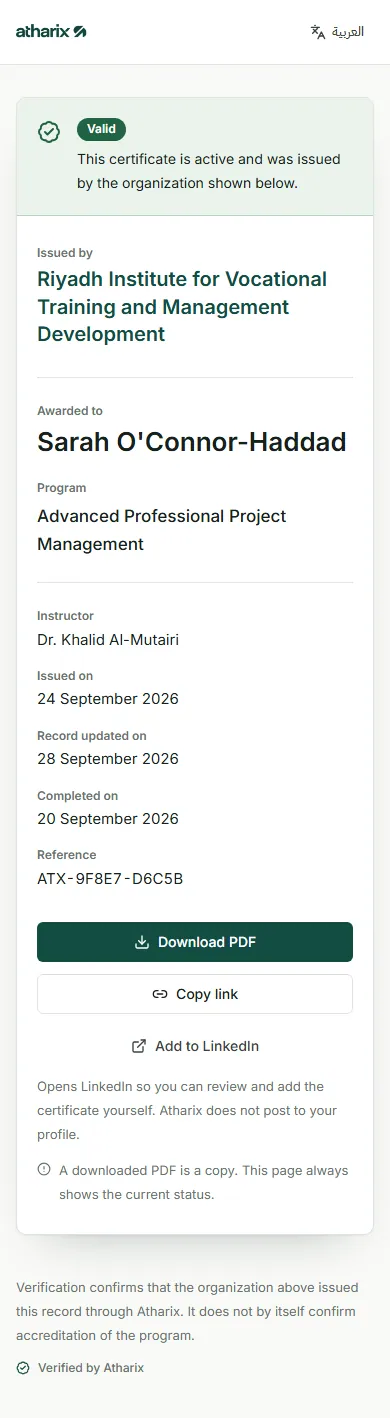
Screens from the product with sample data. People and organizations shown are fictional.
Does verification mean the course is accredited?
No. Verification confirms that the named organization issued the certificate and shows its current status. Course accreditation is the responsibility of accreditation bodies. Check the verification page for the current status; a saved PDF may be out of date.
Only the certificate details
Public pages show the name, programme, organization, dates and status. Contact details, notes and internal references never appear. Pages are not listed by search engines.